
Microsoft unfortunately suffered not one but two major service outages in October 2025 on their Azure Front Door service. This is a global (non-regional) load balancing service offering CDN and WAF services as a front-end to web applications and services. As this is a global service, it does not follow traditional high availability or disaster recovery architecture designs. High availability in Azure usually means deploying multiple service instances across availability zones within a region or else across multiple regions. Azure Front Door as a global network edge service has close to 200 point-of-presence (POP) locations throughout the world. Usually, and by design, this service is therefore extremely resilient to failure, if a node goes down then you just get routed to the next closest node globally and as such, Microsoft back this service with a 99.99% service SLA due to its high resilience level.
However, sometimes things go wrong and unfortunately in these recent cases the built-in safety mechanisms did not kick in and the service failures spread to multiple nodes causing major global outages for customers using this service.
If you are interested, you can read the post-incident reviews on these outages here.
So what happens when Microsoft has a major outage on a global service? Well, usually there’s not much you can do other than wait for Microsoft to restore the service but you may want to consider all options especially if you are hosting a critical service via Azure Front Door and need to invoke a plan B in the unlikely event of a service outage.
Traffic Manager to the Rescue
Although no service can truly be 100% available all of the time, there is one networking service in Azure that does come with a 100% service SLA that can help us here. That service is Traffic Manager, which is a global DNS-based load balancer. It does not proxy traffic or provide CDN/WAF features like Azure Front Door does but instead it simply directs clients to the best available endpoint based on routing rules. Although the service SLA is 100% this refers to its DNS resolution and forwarding only, the endpoints that you are forwarding to will still come with their own separate service SLA. Therefore, this is not a replacement for Azure Front Door but an additional service that you can use to forward traffic to Azure Front Door or to an alternative service if Azure Front Door is unavailable.
In this scenario, you would route the traffic to another publicly accessible service, potentially another load balancer like Application Gateway which also has a WAF feature. Alternatively, you might want to temporarily route your traffic directly to your web endpoint bypassing load balancers and WAFs; it’s an option to consider in the short-term at least! Note, the service needs to be publicly available so if you are using private endpoints on your app service then this option is not possible.
Let’s walk through the solution and suppose that your web application’s CNAME record currently points to Azure Front Door and from there it enters the Microsoft network edge via a POP and is filtered and routed to its destination endpoint which might be an Azure App Service. With our new solution design, we are going to place Traffic Manager in front of Azure Front Door and configure it in ‘Priority’ routing mode. The highest priority (Priority 10) will still route to the primary endpoint service of Azure Front Door as a next hop.
However, if Azure Front Door is unavailable, then thankfully we have set the next priority (Priority 20) to an Application Gateway. This is a regional and virtual network integrated service but importantly it still has a WAF feature so as a backup load balancer and WAF service this could be a great choice for many customers even if it doesn’t have a CDN feature.
Finally, and optionally, we could add a third priority (Priority 30) which is to simply route the traffic directly to the App Service itself foregoing any load balancing and WAF filtering.
The solution at a high-level looks like this.

Configuring Traffic Manager
In terms of configuration, there’s not much to do. Configure your Traffic Manager for Priority mode and then add your endpoints. For Azure Front Door, this will be considered as an external endpoint as it’s an edge service rather than an Azure endpoint. For Application Gateway, you can specify it’s public IP address as the endpoint and for the App Service you can just select the App Service directly from the Azure endpoint options.

One very important consideration here. Do you want Traffic Manager to failover automatically if it detects a service outage or do you want to control failover manually?
For this specific scenario, I would strongly consider a manual failover is best unless this service needs to be up 24/7 and you have someone available to initiate this manual failover. Automated failover works on a health probe basis and whilst you can configure this how you want, there’s always a chance that the health probe may fail for one reason or another although it’s usually down to someone changing something in the configuration of the endpoint from my experience.
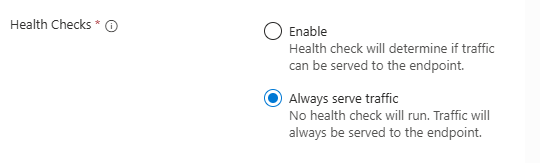
If you want automated failovers then within the endpoint settings, set this to ‘Enable’ and ensure the health probe is working correctly. Otherwise, for manual failovers you can set this to ‘Always serve traffic’. Then it’s simply just a matter of disabling/enabling these endpoints as needed and traffic manager will follow the priority order of the enabled endpoint(s).
Testing
Apart from some potential browser caching, this service failover is very straightforward to test. With all endpoints enabled, the highest priority is to route traffic to Azure Front Door as my primary endpoint. Azure Front Door then forwards the request on to my App Service.
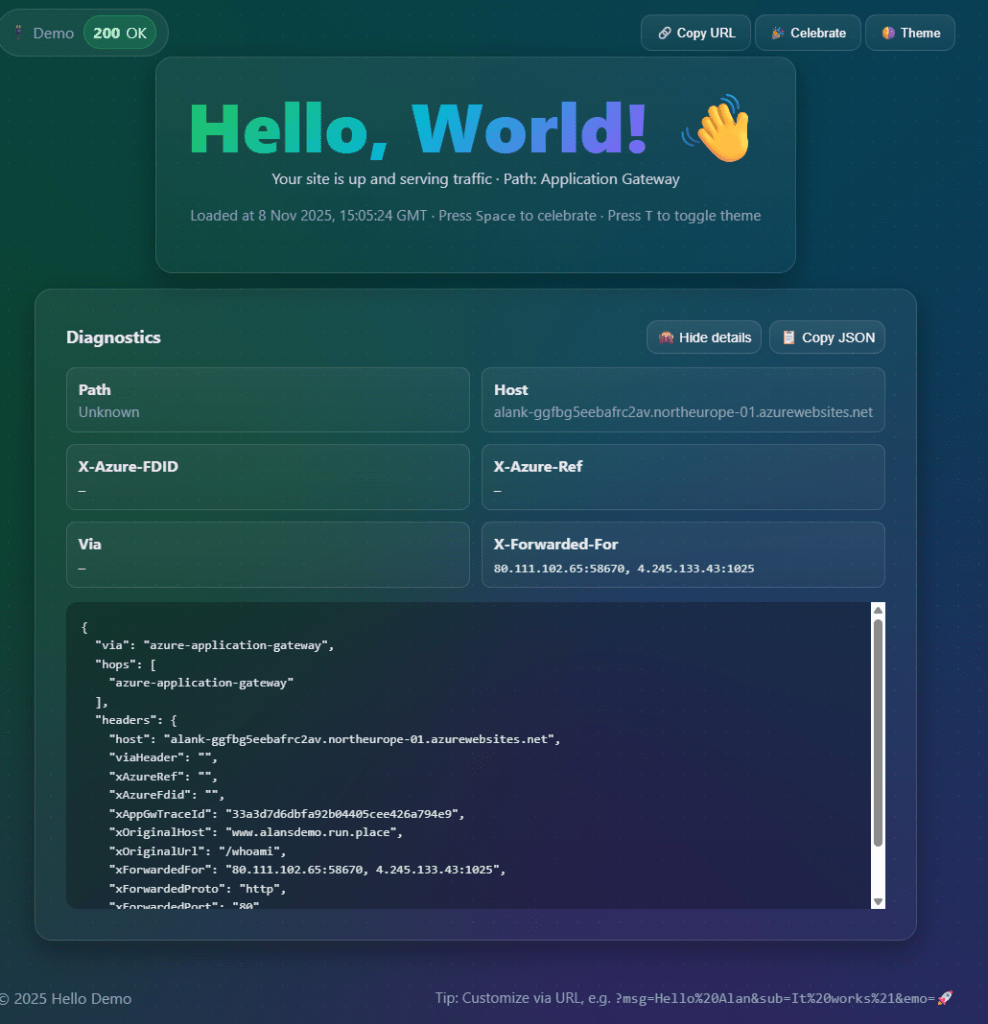
Below is a very simple web app that I 100% vibe coded using Microsoft Copilot. This shows that the web app is available and will indicate where the request is being forwarded from (if at all). In this case, the additional HTTP headers indicates that the traffic was indeed forwarded from Azure Front Door.

Next, we disable the primary endpoint so that the next highest priority is the Application Gateway.

We can see that our web app is now routing via Application Gateway via the forwarding details which contains the public IP address of the Application Gateway.
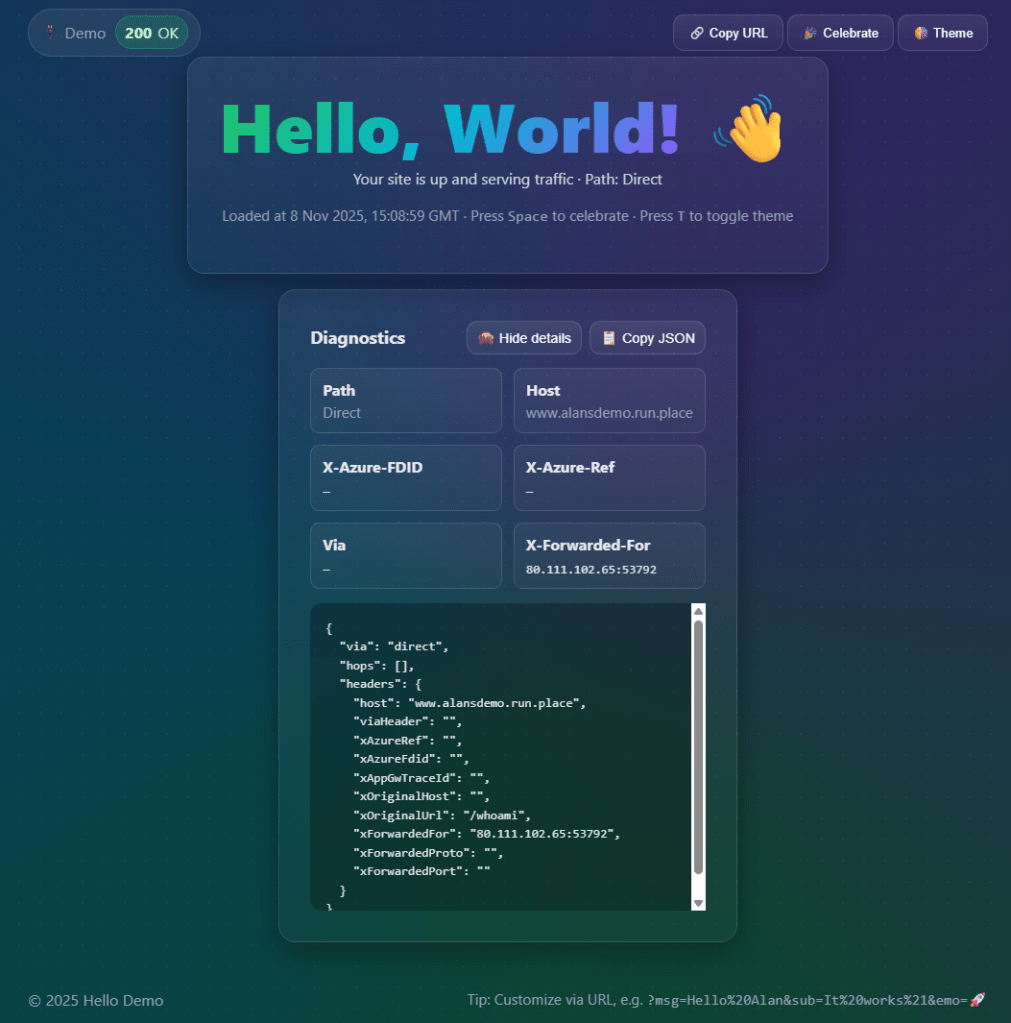
To complete the scenario, let’s disable the first two endpoints and leave only the direct routing method from Traffic Manager to the App Service endpoint itself.

Here, we can see a distinct lack of forwarding details in the HTTP headers indicating that the request was routed directly by Traffic Manager to the App Service.
Conclusion
In summary, for most customers using Azure Front Door this is likely to be a little over the top. Global service outages are extremely rare but if you want to cover all your options then Traffic Manager is a relatively simple and low cost service that you can implement to provide you with alternative routes to your service endpoint. Just remember that it is limited to DNS-based forwarding only and the configuration options are limited.
The below are some very useful Microsoft resources if you want to read up more on this solution.
Global routing redundancy for mission-critical web applications
Traffic Manager – Priority traffic-routing method
 azurealan.ie